
How to Create Spatial Audio from Stereo: Master or Stems
Spatial9 Team · · Updated
Most music and video was finished in stereo, but more and more devices can now play sound from all around and above the listener. This guide explains how to turn a stereo track into spatial audio, how to choose between working from a stereo master or from stems, how AI conversion works, and how to check the result before you publish.
New to the topic? Start with what spatial audio is, then come back here.
Stereo, surround and spatial audio
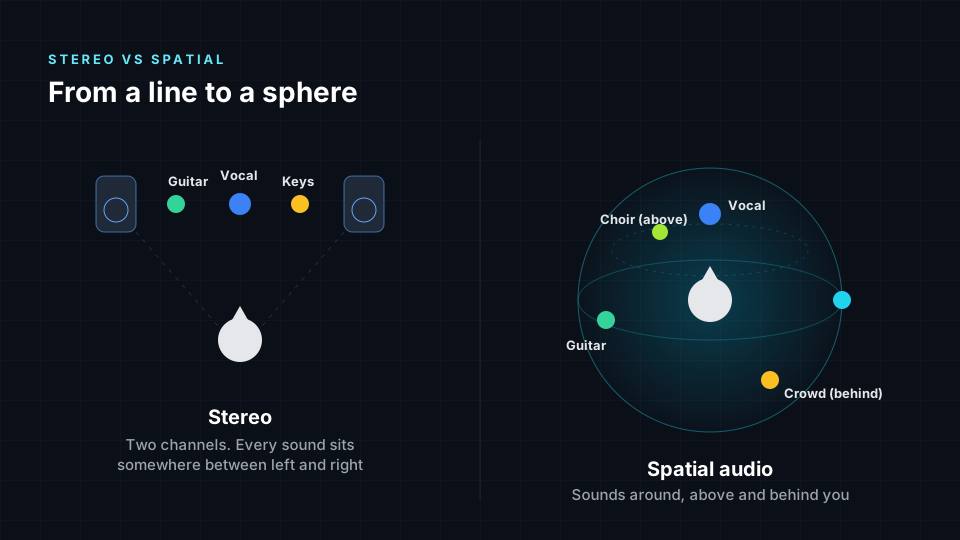
Stereo uses two channels, so every sound lives somewhere on a line between two speakers. Surround formats such as 5.1 and 7.1 add speakers around the listener, but each sound is still tied to fixed channels. Spatial audio describes sounds as objects with positions, as channels that include height speakers, or as a full sound field. The same mix can then be rendered for headphones, a soundbar or a full speaker system. Our guide to stereo vs immersive sound covers the difference in more depth.
Stereo master or stems: which should you start from?
This is the first decision, and it shapes everything after it.
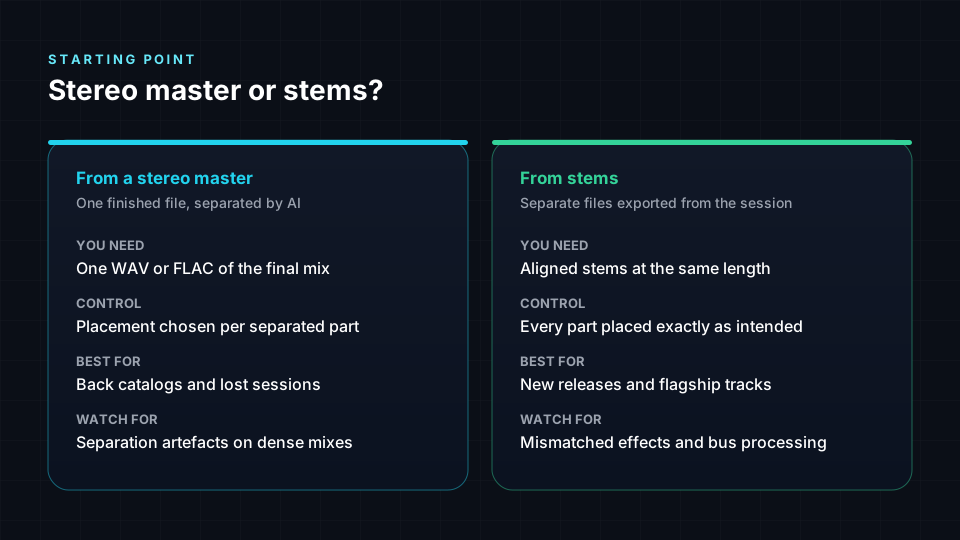
| Starting from a stereo master | Starting from stems | |
|---|---|---|
| What you need | One lossless file of the final mix | Separate files for vocals, drums, bass, instruments and effects, all the same length |
| How the parts are found | AI separates them from the mix | They are already separate |
| Control over placement | Good, per separated part | Full, per stem |
| Best for | Back catalogs, lost sessions, quick releases | New releases, flagship tracks, complex arrangements |
| Main risk | Small separation artefacts on very dense or heavily processed mixes | Stems that do not add up to the approved stereo mix |
| Time to prepare | Minutes | Depends on how organised the session is |
Choose the stereo master when
- The original session or stems are lost, or would take too long to find.
- You are converting a large back catalog and need consistent results.
- The mix is fairly open, with clear space between the main parts.
Choose stems when
- You still have the session and can export clean stems.
- The arrangement is dense, with many parts sharing the same frequencies.
- You want exact control over where every part sits, or plan to adjust it later.
How AI turns a stereo mix into spatial audio
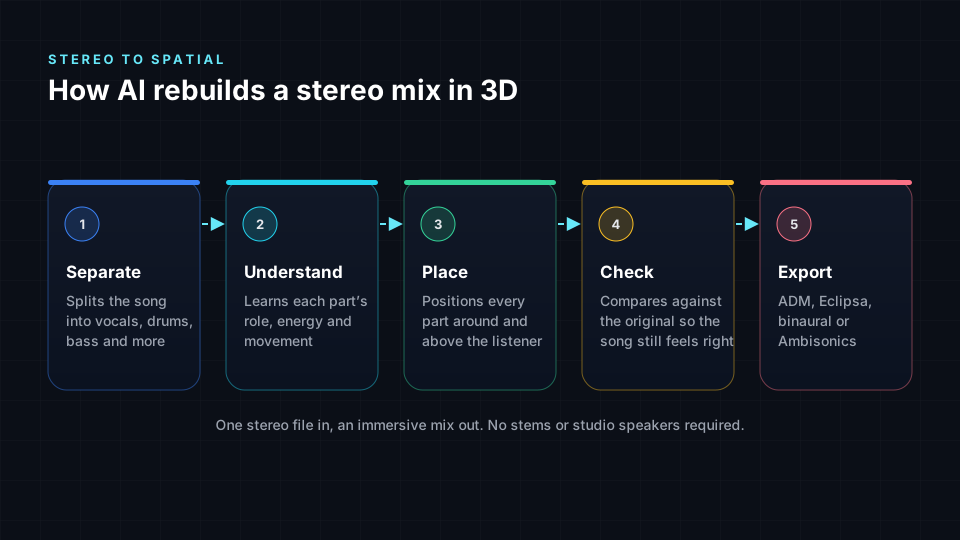
Doing this by hand means separating or re-importing parts, placing each one with a 3D panner and rendering every delivery format. AI conversion automates the same steps:
- Separation. The system splits the finished mix into parts such as vocals, drums, bass and instruments. With stems, this step is skipped.
- Understanding. It looks at the role, energy and structure of each part.
- Placement. It decides where each part should sit and whether it should move, so the scene feels intentional rather than simply wider.
- Checking. It compares the result with the original so the song keeps its balance and feel.
- Rendering. It exports the formats you publish to, such as ADM BWF, Eclipsa Audio, binaural or Ambisonics.
Stereo widening is not spatial audio
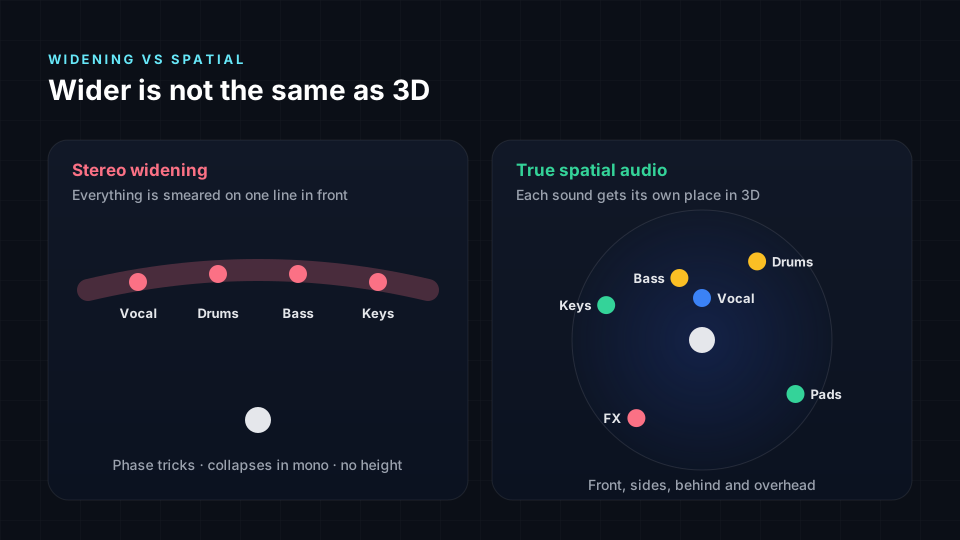
Many plugins promise "3D sound" but only widen the stereo image or add reverb. Nothing is actually placed above or behind you, and the effect can collapse or sound phasey on speakers. Panning the whole song in a circle, the "8D audio" effect, is not spatial audio either. See 8D vs binaural vs spatial audio. A real conversion separates the parts and gives each one its own position.
Step by step: from stereo to a published spatial mix
- Pick your starting point. Use the comparison above to choose the stereo master or stems.
- Prepare the files. Use lossless WAV or FLAC rather than MP3. Leave a little headroom, and avoid a master that is limited so hard the peaks are flattened.
- Upload and convert. Upload to a spatial audio tool. With Spatial9, you can upload a stereo file and, if you have them, stems.
- Review on headphones. Listen for a stable lead vocal, a solid low end, and space that supports the song rather than distracting from it.
- Review on speakers. Check on a soundbar, TV or speaker system if you can, and on phone speakers, where many people will hear it.
- Check the fold-down. Listen to the stereo or binaural version. It should still sound balanced, because many listeners will hear that version.
- Export the right format. For example, ADM BWF for immersive music delivery, or an Eclipsa Audio MP4 for YouTube. See where Eclipsa Audio plays.
- Publish and verify. After uploading, confirm the immersive version is actually playing on a supported device before you announce it.
What to listen for when you review
| Check | What good sounds like | Common problem |
|---|---|---|
| Lead vocal | Clear, stable and in front | Drifts, sounds hollow or loses presence |
| Low end | Centred and solid | Bass thins out or moves around |
| Space | Supports the song's mood | Constant motion that tires the ear |
| Separation | Parts sound natural on their own | Watery or smeared sounds on dense passages |
| Stereo version | Balanced, close to the original | Reverb or effects much louder than before |
Spatial audio formats you may export
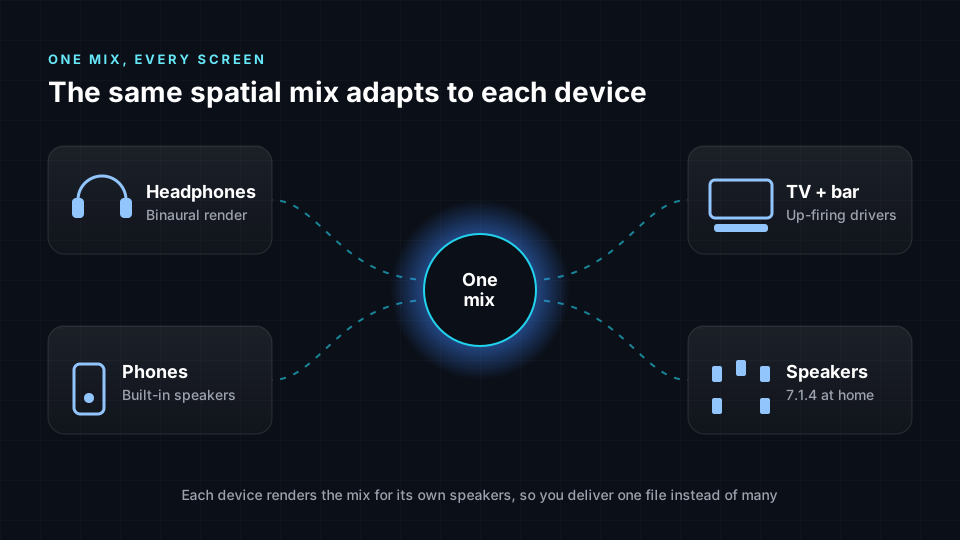
- ADM BWF is a professional delivery file that carries audio and the position data for each sound. See what an ADM BWF file is.
- Eclipsa Audio is the brand name for immersive audio built on IAMF, an open, royalty-free specification from the Alliance for Open Media. YouTube accepts it, and Samsung built it into its 2025 TVs and soundbars.
- Ambisonics describes the whole sound field around the listener. Third-order Ambisonics uses 16 channels. See Ambisonics explained.
- Binaural is a two-channel rendering for headphones. See binaural vs spatial audio.
Common mistakes to avoid
- Starting from a lossy or crushed file. MP3s and heavily limited masters give separation less detail to work with.
- Moving everything all the time. Keep the core of the song anchored and use movement with purpose.
- Losing the vocal. Listeners follow the voice. Keep it clear and present in the front of the scene.
- Skipping the stereo check. Many listeners will hear the fold-down, so it must still sound right.
- Assuming playback works. Confirm the immersive version plays on a supported device before you promote it.
How Spatial9 fits in
Spatial9 is an AI platform for immersive music and video. You upload a song or video, and Spatial9 separates the sources, places each one around the listener and exports ADM, Eclipsa Audio, binaural or Ambisonics. Our patent-pending Intent Fidelity Score checks that the immersive version stays true to the original mix. You can download your files or publish straight to YouTube. If you already have a Dolby Atmos master, you can convert it to Eclipsa Audio instead.
Frequently asked questions
Can you really convert stereo to spatial audio?
Yes. AI separates a finished stereo mix into its parts and places each one in 3D. You do not need the original session, although stems can improve results on dense mixes.
Is it better to use stems or a stereo master?
Stems give the most control and the cleanest separation, so use them for new releases if you have them. A stereo master is faster and works well for back catalogs and songs whose sessions are lost.
What file should I upload?
A lossless WAV or FLAC of the final mix, with a little headroom. Avoid MP3s and masters with heavily flattened peaks.
Do I need special equipment to create spatial audio?
No. The processing happens online. Headphones are enough to review, and a soundbar or TV helps you check how the mix translates.
Is stereo widening the same as spatial audio?
No. Widening stretches the stereo image across the front. Spatial audio gives each sound its own position, including behind and above the listener.
Will spatial audio still sound good on regular headphones?
Yes. A binaural rendering lets ordinary headphones reproduce height and depth, which is how most people first hear spatial audio.
Sources
- Introducing Eclipsa Audio: immersive audio for everyone, Google Open Source Blog, January 2025. YouTube uploads and Samsung's 2025 TV lineup.
- Introducing Open Source DAW Plugin for Eclipsa Audio, Google Open Source Blog, June 2025. IAMF profiles, audio elements and channel counts.
- IAMF specification, Alliance for Open Media.
- Spatial9 product details, including export formats and the Intent Fidelity Score, are provided by Spatial9.
Try it on one of your songs
Start with a stereo track you already love, or its stems, and hear it in a new dimension. Try Spatial9 free and compare the immersive version with your original.