AI Music to Spatial Audio: Export Guide for Every Generator
Spatial9 Team · · Updated
AI music generators can write a full song in seconds, but almost all of them deliver it in plain stereo. That leaves a gap: listeners on headphones, soundbars and the latest TVs can hear sound all around them, and most AI songs never use that space. This guide shows which generators let you export what, how to get each tool's files into Spatial9, and how to turn them into a finished immersive release.
Hear the difference first
Before you choose a tool, listen to what spatial audio adds. Switch between the flat original and the immersive version on the same clip. Headphones work best.
Listen to the before and after music examples (best on headphones).
Why stems matter more for AI music
AI generators build a song as one finished mix. Spatial audio needs to know where each part is, so it can keep the vocal in front, open the instruments around you and lift the ambience overhead.
| What you export | What Spatial9 does with it | Result |
|---|---|---|
| Separate stems (vocals, drums, bass, other) | Places each stem directly in 3D | Cleanest separation, most control |
| WAV master | Separates the mix with AI, then places each part | Very good on most songs |
| MP3 master | Same as WAV, but with less detail to work with | Fine for testing, not ideal for release |
| MIDI only | Cannot be used directly | Render it to audio first |
Our guide to stereo master vs stems explains the trade-off in more depth.
AI music generators: exports and Spatial9 import guides
Search or filter the directory, then open a tool to see which formats each plan offers, what the usage rights say, and step-by-step export and import instructions.
Suno
Full songs with vocals from a text prompt, plus Suno Studio for editing and stems.
Formats by plan: Free: MP3 only. Pro and Premier: WAV. Suno Studio exports up to 12 time-aligned WAV stems. Mobile downloads are always MP3.
Usage rights: Pro and Premier: commercial use for songs made while subscribed. Free: personal, non-commercial use only.
Export from Suno
- On suno.com, open your Library and find the song.
- Click the three-dot menu, hover over Download and pick WAV Audio, or open the song in Suno Studio to extract stems.
- In Suno Studio, use the Export menu at the top right to download the stems as WAV files.
- Since September 2026, every plan has a download limit, and one song counts as one download in any format.
Import into Spatial9
- On spatial9.ai, click Get started and choose Spatializer for Music.
- Upload all the stem files from the same song together. Lossless WAV or FLAC gives the best result.
- Check each stem is labelled correctly, then generate the immersive mix.
- Review on headphones and export Eclipsa Audio, ADM, binaural or Ambisonics.
Upload all WAV stems together for the cleanest result. On the Free plan, upload the MP3 as a stereo master.
Eleven Music
Songs and instrumentals from a prompt, with an editor and built-in stem separation.
Formats by plan: App downloads are MP3 at 44.1 kHz. Stem separation (2 or 4 stems in the app) is a paid feature and costs extra credits.
Usage rights: Paid plans: broad commercial use. Film, TV and large-studio game use needs an Enterprise plan.
Export from Eleven Music
- Open your song in the Eleven Music editor.
- Click Download.
- Choose the full song, vocals and instrumental, or stems.
Import into Spatial9
- On spatial9.ai, click Get started and choose Spatializer for Music.
- Upload all the stem files from the same song together. Lossless WAV or FLAC gives the best result.
- Check each stem is labelled correctly, then generate the immersive mix.
- Review on headphones and export Eclipsa Audio, ADM, binaural or Ambisonics.
Upload the separated stems together. If you only have the full song, upload it as a stereo master.
SOUNDRAW
Royalty-free beats and background music, trained only on music made in-house.
Formats by plan: High-quality WAV, or "WAV + Stems" with separate files for drums, bass, melody, vocals (if any) and FX. Check SOUNDRAW pricing for which plan you need.
Usage rights: SOUNDRAW states every track carries a worldwide license for commercial use.
Export from SOUNDRAW
- Finish your track in the SOUNDRAW editor.
- When downloading, choose "WAV + Stems".
- Unzip the download so each stem is its own WAV file.
Import into Spatial9
- On spatial9.ai, click Get started and choose Spatializer for Music.
- Upload all the stem files from the same song together. Lossless WAV or FLAC gives the best result.
- Check each stem is labelled correctly, then generate the immersive mix.
- Review on headphones and export Eclipsa Audio, ADM, binaural or Ambisonics.
Upload the drums, bass, melody, vocal and FX stems together.
AIVA
Instrumental compositions in more than 250 styles, strong for orchestral and film music.
Formats by plan: Free and Standard: MP3 and MIDI. Pro: all file formats, including high-quality WAV.
Usage rights: Pro: you own the copyright and can monetize without restrictions. Standard: limited monetization on social platforms. Free: non-commercial, with credit to AIVA.
Export from AIVA
- Open the finished track in AIVA.
- Download it as WAV on the Pro plan, or MP3 on Free and Standard.
- MIDI downloads are for your music software. Spatial9 needs audio, so render MIDI to audio first.
Import into Spatial9
- On spatial9.ai, click Get started and choose Spatializer for Music.
- Upload the single song file. WAV or FLAC gives the best result, but MP3 works.
- Spatial9 separates the parts and places each one in 3D.
- Review on headphones and export Eclipsa Audio, ADM, binaural or Ambisonics.
Upload the WAV or MP3 as a stereo master.
Google Flow Music
Google's music app powered by its Lyria models.
Formats by plan: You choose a file format when downloading. Google does not list the formats or plan limits on its help page.
Usage rights: Check Google's terms for Flow Music before commercial use.
Export from Google Flow Music
- Sign in and open Songs on the left.
- Click More next to the song, then Download, and choose a file format.
- To download several songs, tick them and click Download at the top right to get a .zip file.
Import into Spatial9
- On spatial9.ai, click Get started and choose Spatializer for Music.
- Upload the single song file. WAV or FLAC gives the best result, but MP3 works.
- Spatial9 separates the parts and places each one in 3D.
- Review on headphones and export Eclipsa Audio, ADM, binaural or Ambisonics.
Choose the highest-quality format offered and upload it as a stereo master.
Udio
Song generator that now works as a play-and-share platform after its UMG partnership.
Formats by plan: Audio, video and stem downloads have been disabled on every plan since October 2025.
Usage rights: Songs can only be played and shared on udio.com.
Export from Udio
- Downloads are currently turned off, so there is no file to export.
Import into Spatial9
Udio songs cannot be brought into Spatial9 while downloads are disabled. Use songs you made earlier and saved, if you have the rights.
Quick comparison
| Tool | Best file for Spatial9 | Stems | Free plan downloads |
|---|---|---|---|
| Suno | WAV stems from Suno Studio | Yes, up to 12 | MP3 only, limited |
| Eleven Music | Stems | Yes, paid | Not stated |
| SOUNDRAW | WAV + Stems | Yes | Not stated |
| AIVA | WAV (Pro) or MP3 | No | MP3 and MIDI, 3 a month |
| Google Flow Music | Highest-quality format offered | Not stated | Not stated |
| Udio | None | Downloads disabled | Downloads disabled |
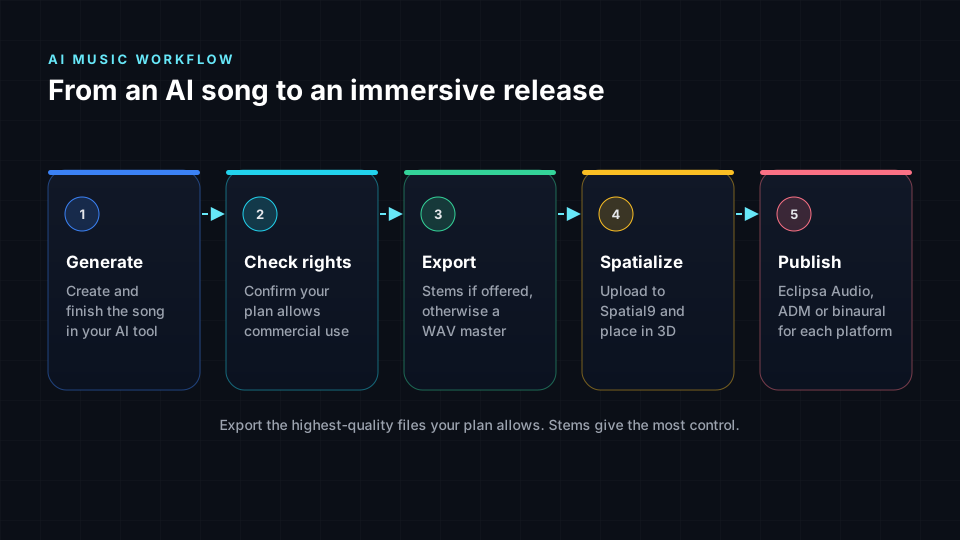
How to turn an AI song into spatial audio, step by step
- Finish the song in your AI tool. Fix the structure, length and lyrics first. Changing the song after spatializing means starting again.
- Check your rights. Make sure your plan allows the use you have in mind, especially if you plan to release on streaming services or monetize on YouTube.
- Export the best files your plan allows. Stems first, then WAV, then MP3. Keep every stem the same length and from the same version of the song.
- Upload to Spatial9. Click Get started and choose Spatializer for Music, then upload your stems together, or the single master file.
- Review on headphones and speakers. Listen for a stable lead vocal, a solid low end and a mix that still feels like your song.
- Export for each platform. Eclipsa Audio for YouTube, ADM for immersive music delivery, binaural for headphone-only platforms. See where Eclipsa Audio plays.
Getting the best results from AI-generated songs
- Avoid heavily distorted or over-limited exports. Some AI songs come out very loud. A cleaner file gives separation more detail to work with.
- Use stems from the same generation. Mixing stems from different versions of a song causes timing problems.
- Keep the vocal in front. Listeners follow the voice, so let the space open up around it rather than moving it.
- Use movement with purpose. A synth rising overhead in the chorus feels musical. Constant spinning feels like the 8D effect. See 8D vs binaural vs spatial audio.
- Match the genre. Electronic music can use bold placement, while acoustic songs suit a natural room. Our spatial audio by genre guides cover 60 styles.
Rights and releasing AI music
Rights depend on the generator and your plan, not on the spatial audio step. Spatializing a song does not change who owns it.
- Paid plans often allow commercial use; free plans often do not. Suno's Free plan, for example, is for personal, non-commercial use, while songs made on Pro or Premier carry commercial rights.
- Some tools add limits. AIVA's Standard plan allows monetization only on certain social platforms, and Mubert says its tracks are not licensed for standalone release on streaming services.
- Keep records. Save your plan details and the date you created each song, in case a distributor or platform asks.
This is general information, not legal advice. Read each tool's terms before you release.
How Spatial9 helps
Spatial9 is an AI platform for immersive music and video. It separates the parts of a song, places each one in 3D with our GravityLLM model, and checks the immersive version stays true to the original with our patent-pending Intent Fidelity Score. It exports Eclipsa Audio, ADM, binaural and Ambisonics. The same technology transformed more than 1,000 AI-generated tracks with Pozalabs. Read about the Pozalabs partnership.
Frequently asked questions
Can I turn AI-generated music into spatial audio?
Yes. Export the song from your AI tool as stems or a WAV file, upload it to Spatial9, and it places each part in 3D and exports immersive formats such as Eclipsa Audio.
Which AI music generator is best for spatial audio?
The best tool is one that exports separate stems, such as Suno through Suno Studio, SOUNDRAW or Eleven Music. Stems give the cleanest immersive result.
Can I use Suno songs in Spatial9?
Yes. Pro and Premier can download WAV files, and Suno Studio exports WAV stems you can upload together. On the Free plan, you can upload the MP3, but those songs are for non-commercial use only.
Can I download Udio songs for spatial audio?
Not at the moment. Udio disabled audio, video and stem downloads on every plan in October 2025 as part of its partnership with Universal Music Group.
Do I need stems to make spatial audio from AI music?
No. Spatial9 can separate a single stereo file. Stems simply give more control and cleaner results on dense mixes.
Does making a spatial version change who owns the song?
No. Ownership and usage rights come from the AI tool's terms and your plan. Check those before you release or monetize the song.
Sources
- Suno Help: downloading songs and rights and ownership, Suno. Formats by plan, stems and commercial rights.
- Suno Terms of Service update, Suno. Download limits from September 2026.
- Changes associated with the UMG partnership, Udio Help Center, October 2025.
- Eleven Music documentation and Music Terms, ElevenLabs.
- SOUNDRAW pricing and FAQ, SOUNDRAW.
- AIVA pricing, AIVA.
- Download songs in Flow Music, Google Help.
- Mubert Render pricing, Mubert. Licensing limits on streaming releases.
- Spatial9 product details, including formats, GravityLLM and the Intent Fidelity Score, are provided by Spatial9.
Give your AI songs a new dimension
Export your best AI song as stems or a WAV file and hear it all around you. Try Spatial9 free and compare the immersive version with the original.