Preparing and exporting stems
File formats, naming, alignment and headroom rules for stems that spatialize cleanly.
This page is the reference for exporting stems from a digital audio workstation (DAW) so that they spatialize cleanly in Spatial9. It covers the file format, sample rate and bit depth, naming, alignment, headroom and effects rules, the export path in common DAWs, the quality checks to run before upload, and how stems map to the Spatial9 MCP server, A2A agent and REST API.
It is written for producers, mix engineers, artists and developers who deliver stems to Spatial9 or to anyone else who will rebuild the song in 3D. For help deciding whether to start from stems or from a stereo master, see Stereo vs stems.
Definitions
A stem is a group of related sounds exported as one audio file, for example all drums, all lead vocals or all keys. A multitrack keeps every recorded track separate. For immersive work, stems are usually the practical middle ground: each stem becomes a separate object that Spatial9 can place and move, while the number of files stays manageable.
A reference mix is the stereo mix of the same song, exported with the same start point as the stems. It is used to check that the stems sum correctly and, in the REST API, to keep the spatial version in sync with the original mix.
Choosing a stem set
The number of stems determines how many independent objects are available for placement. Four stems (vocals, drums, bass and other) are enough for a convincing immersive mix. Six or more give more objects to place and a more detailed 3D result.
| Stem | Contents | Notes |
|---|---|---|
| Lead vocal | Main vocal line | Usually anchored in front |
| Backing vocals | Harmonies, doubles, choirs | Often lifted toward the height layer |
| Drums | Full kit, or kick, snare and cymbals separately | Split the kit when drums are central to the genre |
| Bass | Bass guitar, synth bass, sub | Usually anchored |
| Harmony instruments | Guitars, keys, pads | Ideally one stem per instrument family |
| Effects | Risers, FX, ambience, ear candy | Candidates for movement |
| FX returns | Printed reverb and delay returns | Optional, see effects rules below |
When you submit stems through the MCP server, create_from_stems accepts 2 to 16 stems. Each stem carries a name and an instrument, and the instrument values are vocals, drums, bass, guitar, piano, keys, synth, strings, brass and other. Plan your stem set so that each file maps clearly to one of these values.
Export parameters
Apply the following settings to every stem in the delivery. Use the same values for the reference mix.
| Parameter | Setting | Reason |
|---|---|---|
| File format | WAV or AIFF, uncompressed | Lossy formats bake compression artifacts into every stem |
| Bit depth | 24-bit, or 32-bit float if the receiver requests it | Preserves detail and headroom |
| Sample rate | The session rate | Avoids resampling between stems |
| Maximum sample rate | 96 kHz | Highest rate Spatial9 accepts |
| Normalize | Off | Normalizing changes each stem's level, so the stems no longer sum to the mix |
| Dither | Off at 24-bit or 32-bit float | Dither is only for reducing to 16-bit |
| Master bus processing | Bypassed | Bus compression, limiting and clipping react to the whole mix |
| Channel format | Mono for point sources, stereo for wide sources | See the channel rules below |
Spatial9 accepts WAV, MP3, FLAC and AIFF as input. MP3 is accepted but not recommended for stems, because its artifacts are present in every file and add to any separation artifacts. For best results, use 24-bit WAV at 48 kHz or higher. A sample rate of 48 kHz is the norm for video and most immersive work, and 44.1 kHz is suitable for music-only projects. Use one sample rate and one bit depth for every stem in the session, for example 48 kHz and 24-bit.
Channel rules
- Export point sources such as lead vocal, kick and bass as mono.
- Keep genuinely wide sources, such as stereo pads or room microphones, as stereo.
Effects rules
- Print insert effects that are part of the sound, such as amp simulation, saturation or character EQ.
- For reverb and delay sends, choose one approach per delivery: print the sends into each stem, or export them as separate FX return stems.
- State in the notes file which approach you used.
- Prefer drier stems when you are unsure. A reverb printed into a stem limits how freely that part can move in an immersive mix.
Alignment and length rules
Alignment errors are one of the most common causes of timing problems after upload. Spatial9 places stems relative to each other, so every file must share the same timeline.
| Rule | Requirement |
|---|---|
| Common start | Every stem starts at the same point, usually bar 1 or zero |
| Common end | Every stem ends at the same point, after the last reverb tail has died away |
| Leading silence | Keep the silence before late entries; do not trim it |
| Equal length | All stems, and the reference mix, have the same duration |
| Tails | Reverbs, delays and the final note ring out completely |
Headroom rules
| Rule | Requirement |
|---|---|
| No clipping | No stem clips at any point |
| Peak level | Peaks at around -6 dBFS to -3 dBFS leave room for the next stage |
| Master bus | Bypass master bus limiting and heavy compression during the export |
| Level changes | Do not normalize or gain-match stems after export |
Problems in the source cannot be fully fixed later, so a stem that clips at export carries that distortion into every spatial render. If a stem clips with the master bus bypassed, lower the level of that track or group and export again.
Naming and packaging rules
Clear names identify each instrument immediately and keep files in the same order on every system.
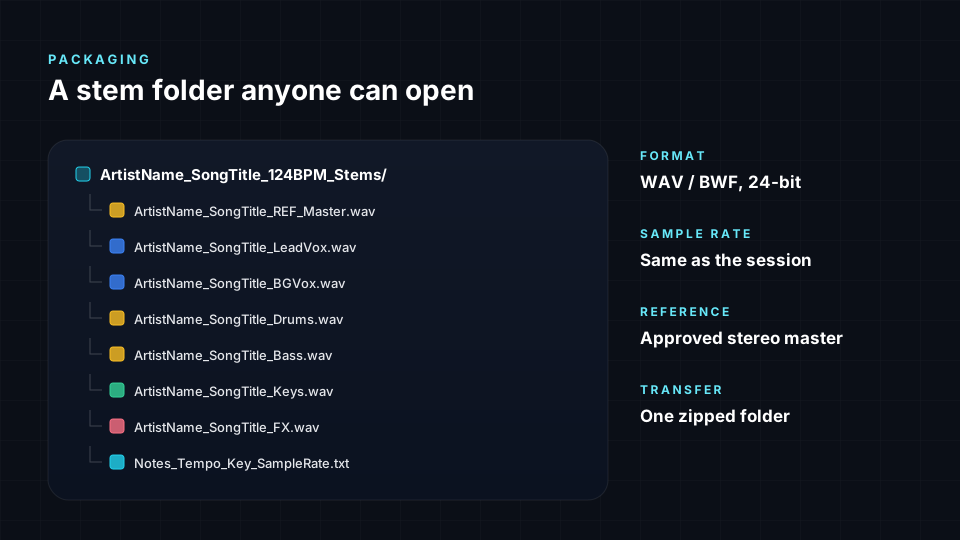
| Item | Convention | Example |
|---|---|---|
| Folder | Project, content and date, optionally the studio | ProjectName_Stems_2025-04-18_StudioName |
| Stem files | Two-digit number and content | 01_LeadVox.wav, 02_BGVox.wav, 03_Drums.wav |
| Reference mix | Stereo mix, same start point as the stems | 00_StereoMix.wav |
| Notes file | Plain text | Notes.txt |
| Transfer archive | Lossless ZIP of the folder | ProjectName_Stems_2025-04-18.zip |
The notes file lists the following:
- Tempo
- Key
- Sample rate
- Bit depth
- Whether reverb and delay are printed into the stems or delivered as FX returns
- Any master bus processing that was bypassed
Preparing the session
Complete these steps before you open the export dialog.
- Name every track by its content, for example "Lead Vox" or "Kick" rather than "Audio 14".
- Commit or freeze virtual instruments and any plugin the receiver will not own, so the sound is printed into audio.
- Confirm that automation is enabled and plays back as intended.
- Set one start point and one end point for the whole export, with the end after the last tail.
- Bypass master bus compression, limiting and clipping.
- Confirm that the session uses one sample rate and one bit depth.
Export procedures in common DAWs
Menu names change between versions. Treat the following as a map and confirm the exact option in the manual for your version.
| DAW | Export path | Key setting |
|---|---|---|
| Ableton Live 12 | File > Export Audio/Video | Rendered Track: All Individual Tracks, Normalize off |
| Logic Pro 11 | File > Export > All Tracks as Audio Files | WAV, 24-bit, include the tail |
| Pro Tools | Select tracks, right-click a name, Bounce (Track Bounce) | Include sends if returns should be printed |
| Cubase 13 | File > Export > Audio Mixdown | Select several channels for separate files |
| FL Studio | File > Export > WAV file | Enable Split mixer tracks |
| Studio One 7 | Song > Export Stems | Choose tracks or channels |
| REAPER 7 | File > Render | Source: Stems (selected tracks) |
| Bitwig Studio 5 | File > Export Audio | Choose the tracks to export as separate files |
| Reason 13 | File > Bounce Mixer Channels | Bounce each channel |
| GarageBand | Share > Export Song to Disk | Solo each group; no one-click stem export |
General export procedure
- Select the tracks, groups or buses that form your stem set.
- Set the export range from the common start point to the common end point.
- Choose WAV or AIFF, 24-bit (or 32-bit float on request), at the session sample rate.
- Turn off normalize and dither.
- Choose mono or stereo per stem according to the channel rules.
- Enable tail inclusion, if the DAW offers it.
- Export the stems into the delivery folder.
- Export the stereo reference mix with the same range.
Quality checks before upload
Run these six checks on every delivery before upload.
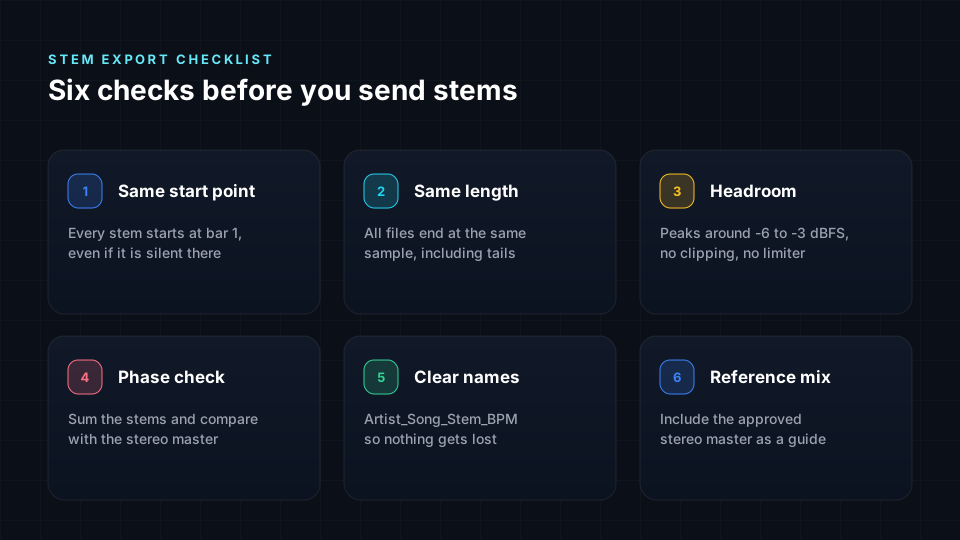
- Alignment. Import every stem into an empty session at zero and confirm that all files start and end together.
- Sum test. Play all stems together at unity gain and compare them with the stereo reference. They should sound the same, apart from master bus processing you bypassed.
- Headroom. Confirm that no stem clips and that peaks sit around -6 dBFS to -3 dBFS.
- Phase and polarity. Listen for a thin or hollow sound when stems play together, especially with several drum microphones.
- Tails. Confirm that reverbs, delays and the final note ring out completely.
- Names. Confirm that every file name states what it contains.
Delivering stems to Spatial9
The same stem files work with every Spatial9 interface. Only the upload mechanism differs.
| Interface | How stems are sent | Relevant limits |
|---|---|---|
| Web app | Upload all stems together | See Spatializer for Music |
| MCP server | create_upload_link, PUT the file to direct_upload_url, then create_from_stems with each upload_id, name and instrument | 2 to 16 stems; upload links valid 2 hours, files up to 2 GB |
| A2A agent | upload_link skill for local files | Upload links valid 2 hours, files up to 2 GB |
| REST API | POST /musics with an instruments map, then tus uploads to /musics/{id}/stems | Chunks must stay under the server Tus-Max-Size |
All renders share the same limits: 3 concurrent renders and 20 renders per day. See Limits, quotas and errors.
File names in the REST API
In the REST API, POST /musics declares the stems before upload. The instruments object maps instrument UUIDs from /instruments to arrays of stem file names, and the optional stereo field names the reference mix.
{"name":"Sample Music","stereo":"Sample Music.wav","instruments":{"1e9d541b-7286-4023-be7b-5f943644842c":["BASS.wav"],"0409683b-3bbd-419c-8db4-579f7cc6b22c":["DRUMS.wav"],"57a7464e-fe2e-41b5-aa78-215ea8fc8785":["LEAD VOCALS.wav"]}}Every file name listed in instruments must be uploaded, and only those names are accepted. If you name a stereo file, you must also upload it. The file name in the tus Upload-Metadata header must match the declared name exactly; an upload whose name is missing or not part of the music returns 400. The UUIDs above are examples only. See REST API reference.
Limitations
- Stems do not perfectly recreate the mix. Master bus processing and sidechain compression triggered by a part in another stem behave differently once the parts are separate.
- Printed effects are permanent and restrict how far a part can move.
- Sharing stems does not grant permission to release them. Agree the terms in writing before delivery.
- Store rules govern how a mix is made. Apple Music, for example, does not accept a Dolby Atmos mix made from a stereo release or from stems extracted from one. Check each store before choosing a workflow; see Publishing and delivery.
Troubleshooting
| Symptom | Likely cause | Remedy |
|---|---|---|
| Stems drift or flam against each other | Different start points or trimmed leading silence | Re-export every stem from the same start point |
| Stems sum louder or quieter than the mix | Normalize was on, or faders changed between exports | Re-export with normalize off and unchanged faders |
| Sum sounds less punchy than the mix | Master bus compression or limiting was bypassed | Expected; the effect cannot be rebuilt from separate parts |
| Pumping differs from the mix | Sidechain trigger sits in another stem | Expected; record it in the notes file |
| A stem distorts after spatialization | Stem clipped at export | Lower the track level and re-export with peaks around -6 dBFS to -3 dBFS |
| Reverb or final notes cut off | Export ended before the tails | Extend the end point and enable tail inclusion |
| Reverb sounds doubled | Sends printed into stems and also delivered as FX returns | Use one approach and record it in the notes file |
| Missing synth or plugin sound | Virtual instrument not committed or frozen | Freeze or commit the track and re-export |
| REST upload returns 400 | File name not declared in instruments or stereo | Match the Upload-Metadata name to the declared name |
| REST upload returns 413 | Chunk larger than the server Tus-Max-Size | Use smaller chunks |
Next steps
- Quickstart walks through a first render with prepared stems.
- Spatializer for Music explains how uploaded stems are placed and moved in 3D.
- Mixing best practices covers placement and balance decisions after upload.
- REST API reference documents the stem upload endpoints and tus headers.