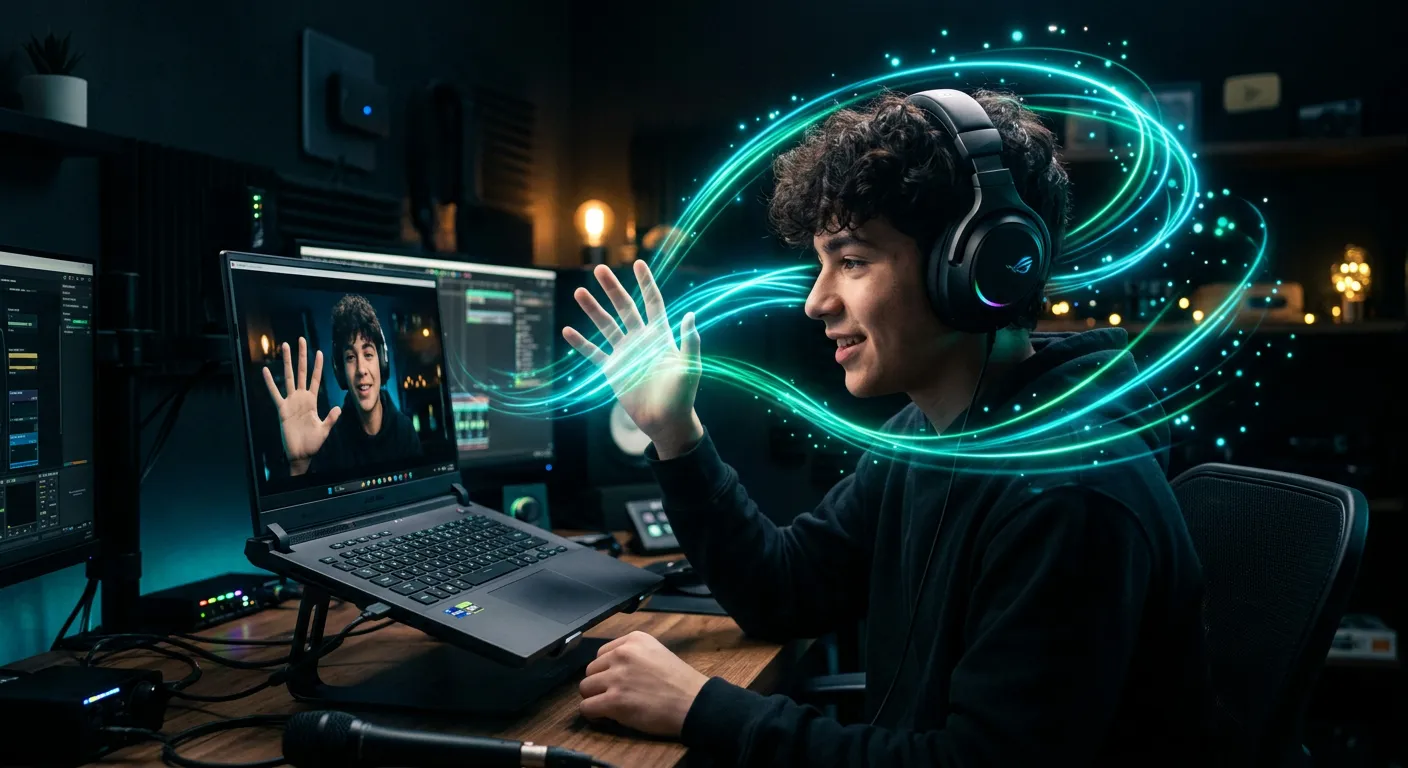
Lab 2: Shape an Immersive Mix With Your Hands and Voice
Spatial9 Team ·
Lab 9 of 14 in Spatial9 Academy, module 3: Hands-on labs. Practice in the demo: Music Transformation.
For most of audio history, mixing has meant sitting still. You face a console or a screen, you reach for a fader, and you move it a few millimeters. The music changes, but your body barely does.
What if the mix responded to an open hand? To a spoken sentence? To the speed of a turn of your head? Suddenly mixing stops looking like data entry and starts looking like performance. You are no longer just adjusting sound. You are playing the space.
In Lab 1 you built a listening method. In this lab you put that method to work while you move. It is the second hands-on lab in Spatial9 Academy, and it is the most playful one. Enjoy it.
What you will learn
- How Interactive Mode maps hands, voice and head movement to changes in a 3D mix.
- How to choose up to two instruments or groups for hand control and why that limit helps you focus.
- How the valence and arousal model describes emotion, and how it can drive spatial behavior.
- What the Emotion-Driven and Bio-Adaptive Beta Previews suggest about personalized audio.
- How to think critically about mixing as performance, privacy and accessibility.
Your body as a controller
Interactive Mode gives you four ways to shape the mix. Each one is a different kind of control, with a different musical purpose.
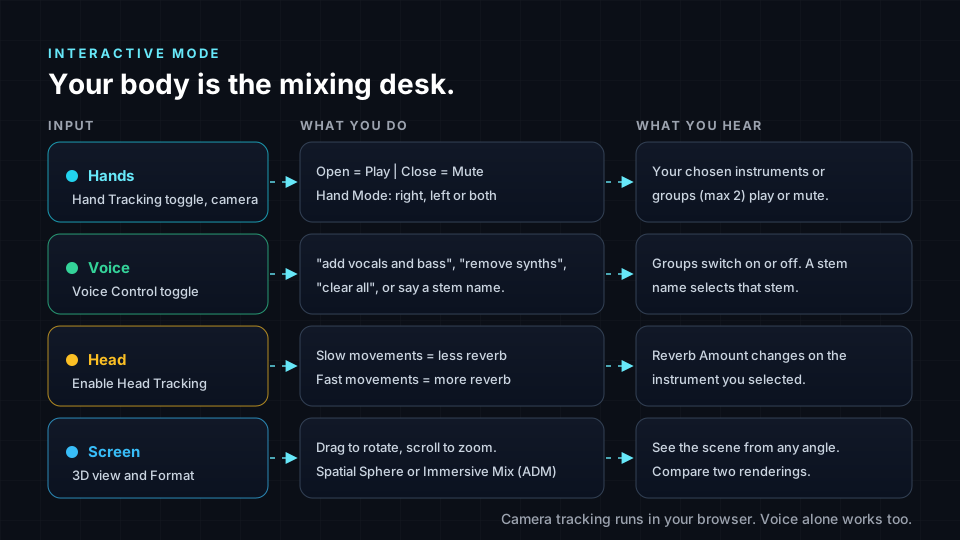
Hands: play and mute in real time
With "Hand Tracking" switched on, your camera follows your hand in the browser. The rule is simple and shown on screen: "Open = Play | Close = Mute". Open your hand and the instruments you selected play. Close it and they fall silent. Under "Hand Mode:" you can choose right, left or both hands.
You select the instruments for hand control under "Select Instruments for Hand Control (Max 2)". The choices are organized into groups: Drums, Bass, Melodic, Synths and FX. The limit of two is a gift, not a restriction. Two hands, two ideas. You can bring a bass line in and out like a performer, or cut the drums for a breakdown and drop them back in on the downbeat.
Voice: arrange with sentences
With "Voice Control" switched on, the demo shows "Listening for voice commands...". You can say things like "add vocals and bass", "enable all drums", "remove synths" or "clear all". Saying a stem name selects that stem.
Voice is a different kind of control. Hands are fast and continuous. Voice is descriptive. You say what you want, and the arrangement follows. This is a small taste of a big idea in this course: describing intent in plain language and letting the system do the detailed work.
Head: reverb that follows your movement
"Head Movement Reverb Control" connects your head to the sense of space around one instrument. Turn on "Enable Head Tracking", choose an instrument under "Select Instrument for Reverb:", and set "Reverb Amount:". The guide on screen says it clearly: "Slow movements = less reverb, Fast movements = more reverb".
Remember from How We Hear in 3D that reverb is one of the strongest distance cues. So this control does more than add effect. It changes how close or far the selected instrument feels, in response to how you move.
Screen: view and format
While the music plays, the view "Interactive 3D Spatial Audio" shows the scene. The hint reads "Drag to rotate • Scroll to zoom". Next to it, "Format" lets you switch between "Spatial Sphere" and "Immersive Mix (ADM)", just as you did in Lab 1. "Master Vol" sets the overall level.
Emotion as coordinates
Psychologists often describe emotions using two dimensions. Valence is how pleasant or unpleasant a feeling is. Arousal is how calm or energized it is. Joy and excitement sit high on both. Calm contentment is pleasant but low in arousal. Anger is high in arousal but unpleasant. This two-axis map is known as the circumplex model of affect, introduced by psychologist James Russell.
Two numbers for a feeling is a powerful idea for spatial audio, because a spatial mix is also described with numbers: position, spread, movement and speed. Connect one set of numbers to the other, and space can respond to how a listener feels.
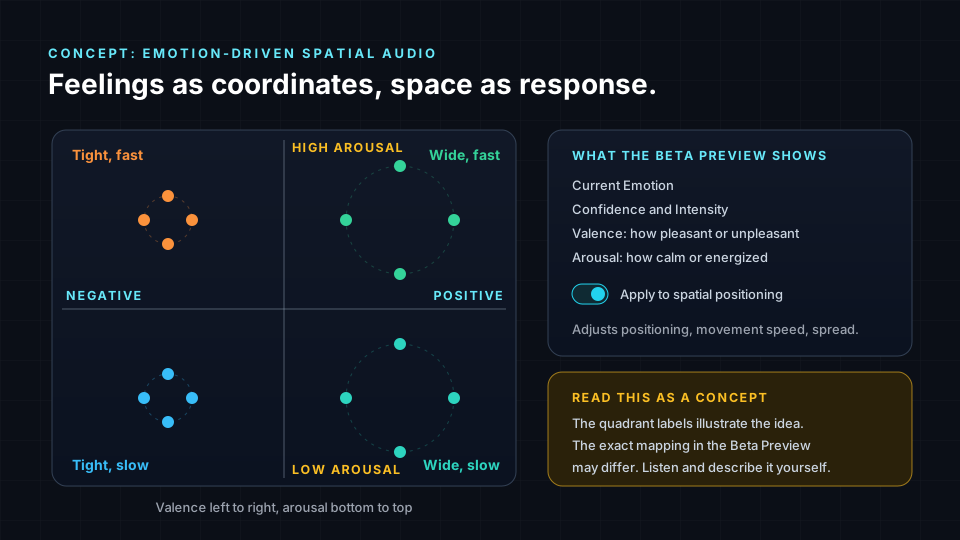
The Emotion-Driven Spatial Audio Beta Preview explores exactly this. Using your camera, it reads facial expressions and shows "Current Emotion:" along with Confidence, Intensity, Valence and Arousal. When you switch on "Apply to spatial positioning", those readings adjust the positioning, movement speed and spread of the sound.
The diagram above is a teaching illustration, not a specification. Your job in the lab is to listen and describe what actually happens, using the vocabulary from Lab 1.
Your body as a signal
The Bio-Adaptive Spatial Audio Beta Preview takes the idea one step further. It works with a heart-rate monitor, or with a simulator if you do not have one. Its state detection looks at arousal, stress, focus and valence. It offers four behaviors named Anchor, Bloom, Shell and Breath, and you open it with "Launch Bio-Adaptive Studio".
Think of these previews as glimpses, not finished products. They point toward audio that adapts to a person: a focus mix that stays steady when you are concentrating, or a calming scene that responds to stress. For wellness, accessibility, games and live experiences, this is a rich design space, and it is still being invented. You could be one of the people who invents it.
Mixing as performance
DJs, live electronic musicians and front-of-house engineers already know that mixing can be a performance. Timing matters. Feel matters. A filter sweep played by hand sounds different from one drawn with a mouse, because a human body is not perfectly regular.
Gestural control brings that quality to spatial audio. When you open your hand on the downbeat or turn your head faster to bloom the reverb at a peak, your timing becomes part of the music. Notice in this lab how often you want to repeat a gesture until it feels right. That instinct is musicianship.
Accessibility and privacy
Interfaces shape who can take part. A tiny fader or a precise mouse drag can be difficult for some people. Large gestures, voice commands and head movement offer other routes into the same creative decisions. No single input works for everyone, which is why offering several matters. A gesture that is easy for one person may be tiring or impossible for another. Good interface design gives people choices.
Privacy matters just as much. In this demo the camera is only used for tracking in your browser. Grant camera access only if you are comfortable doing so. If you prefer not to, use voice control, or skip the camera features and focus on the rest. You will still learn a great deal.
Lab steps
Put on headphones before you start. The Music demo has the status Live, so everything below runs in your browser.
- Open /demo/music. Under "Choose a mode", select the tile "Interactive Mode". You will see the heading "Interact with the Music".
- Under "Select Instruments for Hand Control (Max 2)", choose up to two instruments or groups from Drums, Bass, Melodic, Synths and FX. Use "Select Group" to pick a whole group, and "Clear All" to start again. For a first try, choose Drums and Bass.
- If you are comfortable using your camera, switch on "Hand Tracking". Choose "Hand Mode:" right, left or both. Check the live view and the reminder "Open = Play | Close = Mute".
- Switch on "Voice Control". Wait until you see "Listening for voice commands...".
- Click "Start Interactive Experience". You will see "Loading Audio..." and then the music begins. Set "Master Vol" to a moderate level.
- Open and close your hand slowly, then in time with the beat. Listen for how cleanly your selected instruments enter and leave. Try to perform a breakdown and a drop.
- Speak commands clearly: "remove synths", then "enable all drums", then "add vocals and bass", then "clear all". Then say a stem name to select it. Notice how the space empties and fills.
- In "Head Movement Reverb Control", click "Enable Head Tracking". Pick an instrument under "Select Instrument for Reverb:" and adjust "Reverb Amount:". Move your head slowly, then quickly. Listen for the instrument moving further away as the reverb grows.
- In the view "Interactive 3D Spatial Audio", drag to rotate and scroll to zoom. Switch "Format" between "Spatial Sphere" and "Immersive Mix (ADM)" and compare clarity and envelopment.
- Optional: in "Emotion-Driven Spatial Audio", click "Try Beta Preview". Watch "Current Emotion:", Confidence, Intensity, Valence and Arousal. Switch on "Apply to spatial positioning", then smile, frown and relax your face. Listen for changes in spread and movement speed.
- Optional: in "Bio-Adaptive Spatial Audio", click "Launch Bio-Adaptive Studio". Use a heart-rate monitor or the simulator. Listen to each behavior, Anchor, Bloom, Shell and Breath, and describe each one in your own words.
- Click "Stop Playback" when you finish. This also stops camera tracking.
Key terms
| Term | Meaning |
|---|---|
| Interactive Mode | The demo mode where you shape a 3D mix with hands, voice and head movement. |
| Hand tracking | Camera-based following of your hand, used here to play or mute selected instruments. |
| Voice control | Spoken commands that add, remove or select stems and groups. |
| Head movement reverb | A control that links the speed of your head movement to reverb on one instrument. |
| Valence | How pleasant or unpleasant an emotional state is. |
| Arousal | How calm or energized an emotional or physical state is. |
| Bio-adaptive audio | Audio that responds to signals from the body, such as heart rate. |
| Gestural interface | A control system driven by body movement rather than knobs, faders or a mouse. |
Check your understanding
- What do an open hand and a closed hand do in Interactive Mode?
- Why does more reverb make an instrument seem further away?
- What do valence and arousal measure?
- Name the four behaviors in the Bio-Adaptive Beta Preview.
- Give one accessibility benefit of offering voice control alongside gestures.
Answers
- An open hand plays the selected instruments and a closed hand mutes them, as shown by "Open = Play | Close = Mute".
- A lower direct-to-reverberant ratio is one of the strongest distance cues, so the brain reads a more reverberant sound as more distant.
- Valence measures how pleasant or unpleasant a feeling is, and arousal measures how calm or energized it is.
- Anchor, Bloom, Shell and Breath.
- People who cannot use their hands easily, or who prefer not to use a camera, can still make the same creative decisions.
Assignment
Create a 60 to 90 second "spatial performance". Choose two groups for hand control and plan a short structure, such as intro, breakdown and drop, using gestures, voice commands and head movement reverb. Rehearse it until it feels musical. If you are comfortable, film your hands or screen, or simply record your screen and audio. Then write a one-page reflection covering what felt expressive, what felt clumsy, how the Beta Previews changed the space in your own listening, and one idea for an adaptive audio experience you would like to build. Add it to your portfolio.
Frequently asked questions
Do I have to use my camera for this lab?
No, the camera is optional and is only used for tracking in your browser, so if you prefer not to grant access you can use voice control and the other controls and still complete most of the lab.
Why can I only select two instruments for hand control?
The limit, shown as "Max 2", keeps gestures clear and musical, because two hands can comfortably perform two ideas and it trains you to choose what really matters in a moment.
Is the emotion detection accurate?
The Emotion-Driven feature is a Beta Preview, and it shows a Confidence value with each reading, so treat it as an experiment to listen to and describe rather than a precise measurement of how you feel.
Do I need a heart-rate monitor for the Bio-Adaptive preview?
No, the Bio-Adaptive Beta Preview can work with a simulator, so you can explore its behaviors without any extra hardware.
Next step
You have listened critically and performed with space. In the final lab, Lab 3: Your First Immersive Mix From Your Own Stems, Exported to Binaural, you will bring your own music, let GravityLLM propose a spatial arrangement, refine it and export it to share. You can always return to the Spatial9 Academy course home to see the full path.