Workflow automation: n8n, Zapier and Make
Build no-code and low-code pipelines that send audio to Spatial9 and deliver the results.
This page describes how to connect Spatial9 to workflow automation tools so that audio sent in by a form, a spreadsheet row, a repository push or a schedule is rendered to Eclipsa Audio (IAMF) and delivered without manual steps. It covers n8n, Zapier and Make in detail, and also the Power Automate, GitHub Actions and Apache Airflow recipes from the Agent Skills repository.
It is for automation builders, operations teams and developers who prefer no-code or low-code tools. Every recipe uses the same two public endpoints: the MCP server at https://spatial9.ai/mcp and the A2A agent at https://spatial9.ai/a2a. The example files referenced here live in the examples/ folder of the Agent Skills repository, which you can browse or download at /agents/skills.
The render lifecycle
Every Spatial9 pipeline runs the same five steps, whatever tool you use.
- Get the file: a direct
httpslink to the audio, or anupload_idfromcreate_upload_link. - Start the job: call
create_spatial_audio(MCP) or send an A2Amessage/send, always with an idempotency key. - Wait: poll
get_job_statusevery 30 to 60 seconds, or receive an A2A push notification. - Collect: call
get_downloads, or read the file parts of the A2A task artifacts. - Ship: send the links to Slack, Gmail, Google Drive, Dropbox, Box or your own storage.
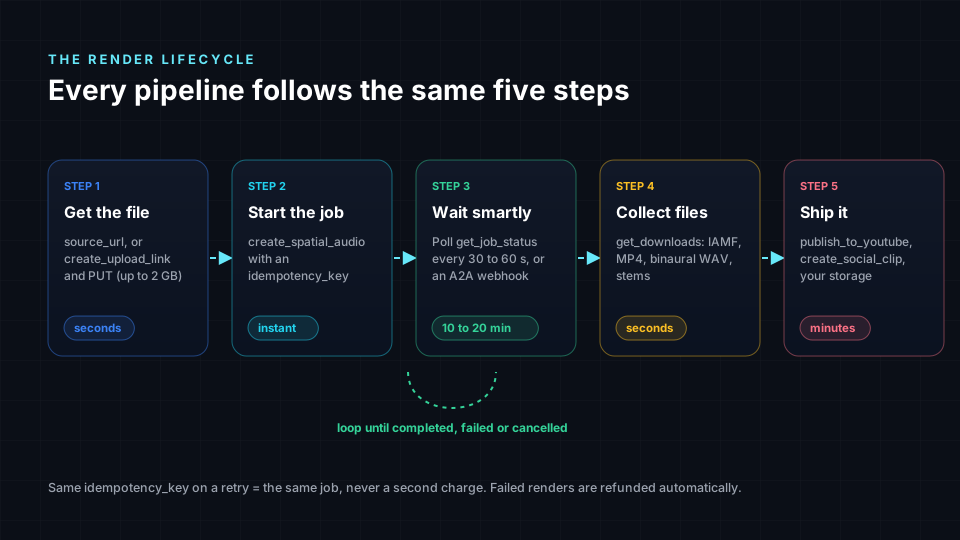
A song usually takes 10 to 20 minutes, a stem split 4 to 8 minutes and a free chorus preview under two minutes. Tools that cannot wait that long inside one run, such as Zapier, should use the A2A webhook pattern instead of polling.
Choosing a pattern
| Tool | Endpoint | Waiting strategy | Example folder |
|---|---|---|---|
| n8n (fixed workflow) | /mcp | Wait node and Switch loop | examples/n8n |
| n8n (AI Agent) | /mcp | Agent calls get_job_status | examples/n8n |
| Zapier | /a2a | Catch hook webhook, two Zaps | examples/zapier |
| Make | /a2a | Custom webhook, two scenarios | examples/zapier |
| Power Automate | /mcp | Do until loop | examples/power-automate |
| GitHub Actions | /mcp | Python polling script | examples/github-actions |
| Apache Airflow | /mcp | Task pool of 3 | examples/airflow |
Prerequisites
- A Spatial9 personal key (
s9_...) created at /connect. Store it in the tool's credential vault, never in a node, step or workflow JSON. - A direct
httpslink to each audio file, or a way to upload it withcreate_upload_link. Upload links last 2 hours and accept files up to 2 GB. - For webhook patterns, a receiving URL that is
https, on a public host and on port 443.
Calling MCP from an HTTP node
Fixed workflows send JSON-RPC tools/call requests to https://spatial9.ai/mcp. Each request needs these headers.
| Header | Value |
|---|---|
Authorization | Bearer s9_your_key |
Content-Type | application/json |
Accept | application/json, text/event-stream |
The result of a successful call is in result.structuredContent. If the tool refuses the request, result.isError is true and result.content[0].text contains the reason in plain words. A JSON-RPC error object indicates a protocol problem such as a bad parameter, and an HTTP 401 means the key is wrong or revoked.
The tools used by the recipes are listed below. See MCP server for the full tool reference.
| Tool | Purpose |
|---|---|
create_upload_link | Returns upload_id and direct_upload_url for a private upload |
create_spatial_audio | Starts an immersive render and returns job_id |
get_job_status | Returns status, stage and progress |
get_downloads | Returns the download list with id, label, filename and url |
preview_chorus | Free 30-second headphone preview |
The create_spatial_audio arguments used in the examples are source_url or upload_id, media_type (music), title, style (live_concert, club, cinema or intimate_studio), include_binaural and idempotency_key. Useful download IDs are binaural, youtube_video and iamf.
n8n
n8n supports two approaches: a fixed workflow built from HTTP Request nodes, and an AI Agent node that uses the MCP Client Tool to choose the steps itself.
Option A: a fixed workflow with HTTP Request nodes
In this workflow, anyone on your team pastes a song link into a form and receives the immersive files in Slack.
- Create a Header Auth credential named
Spatial9with the nameAuthorizationand the valueBearer s9_your_key. - Add a Form Trigger with the fields Song link, Title and Style.
- Add an HTTP Request node named "Start render": method POST, URL
https://spatial9.ai/mcp, authentication from the Spatial9 credential, anAcceptheader ofapplication/json, text/event-stream, and the body fromstart-render.body.js. - Add a Wait node of 60 seconds.
- Add an HTTP Request node named "Check status" with the same settings and the body from
check-status.body.js. - Add a Switch node that routes on
{{ $json.result.structuredContent.status }}:completedcontinues,failedorcancelledgoes to an alert, and any other value loops back to Wait. - Add an HTTP Request node named "Get downloads" that calls
get_downloads, then a Code node withformat-downloads.code-node.js, followed by Google Drive and Slack nodes.
The "Start render" body derives the idempotency key from the title, so the same title always maps to the same job and a re-run never charges twice.
{{ JSON.stringify({
  jsonrpc: "2.0",
  id: 1,
  method: "tools/call",
  params: {
    name: "create_spatial_audio",
    arguments: {
      source_url: $json["Song link"],
      media_type: "music",
      title: $json["Title"],
      style: $json["Style"] || "live_concert",
      include_binaural: true,
      idempotency_key: "n8n-" + $json["Title"].toLowerCase().replace(/[^a-z0-9]+/g, "-")
    }
  }
}) }}
The "Check status" body reads the job_id from the "Start render" node.
{{ JSON.stringify({
  jsonrpc: "2.0", id: 2, method: "tools/call",
  params: {
    name: "get_job_status",
    arguments: { job_id: $('Start render').item.json.result.structuredContent.job_id }
  }
}) }}
The Code node surfaces Spatial9's own error message and keeps only the binaural, YouTube video and IAMF links.
const result = $input.first().json.result;
if (result.isError) throw new Error(result.content[0].text);

const files = result.structuredContent.downloads ?? [];
const wanted = files.filter(f => ["binaural", "youtube_video", "iamf"].includes(f.id));
const lines = wanted.map(f => `- ${f.label}: ${f.url}`);

return [{ json: { text: `Your immersive mix is ready:\n${lines.join("\n")}` } }];
Option B: an AI Agent node with the MCP Client Tool
For open-ended requests, add an AI Agent node, attach a chat model and attach the MCP Client Tool node with the settings below.
| Setting | Value |
|---|---|
| Endpoint | https://spatial9.ai/mcp |
| Server transport | HTTP Streamable |
| Authentication | Bearer, using your Spatial9 key |
| Tools to include | Selected, for example preview_chorus, get_clip, create_spatial_audio, get_job_status, get_downloads |
Paste the steps and rules from the matching SKILL.md into the agent's system message. See Agent Skills.
Zapier
Zapier steps should not wait 20 minutes, so the Zapier recipe uses the A2A push notification and two Zaps. Spatial9 calls the catch hook whenever the task changes state.
- Build Zap 2, "Render finished" first. Use the trigger "Webhooks by Zapier: Catch Hook" and copy its URL.
- Build Zap 1, "Start render" with a trigger such as a new Google Sheets row containing a song link, followed by "Webhooks by Zapier: Custom Request".
- Configure the Custom Request with method POST, URL
https://spatial9.ai/a2a, headersAuthorization: Bearer s9_...andContent-Type: application/json, and the A2A body shown below with Zap 2's URL aspushNotificationConfig.url. - Back in Zap 2, add a Filter that continues only when
status.stateexactly matchescompleted. - Add a Code by Zapier step (Python) that extracts the file links, then a Gmail, Slack or Google Drive step.
{
  "jsonrpc": "2.0",
  "id": "start-1",
  "method": "message/send",
  "params": {
    "message": {
      "kind": "message",
      "role": "user",
      "messageId": "night-drive-001",
      "parts": [{
        "kind": "data",
        "data": {
          "skill": "spatial_audio",
          "source_url": "https://example.com/masters/night-drive.wav",
          "title": "Night Drive",
          "style": "cinema"
        }
      }]
    },
    "configuration": {
      "pushNotificationConfig": {
        "url": "https://hooks.example.com/spatial9-updates",
        "token": "your-webhook-token"
      }
    }
  }
}
The messageId is the idempotency key: sending the same value again returns the same task. The skill can be spatial_audio, split_stems, convert_dolby or preview_chorus. The token is echoed back in the X-A2A-Notification-Token header of each push notification.
The Code by Zapier step takes the raw catch hook body as the input field task.
import json

task = json.loads(input_data["task"])
links = []
for artifact in task.get("artifacts", []):
    for part in artifact.get("parts", []):
        if part.get("kind") == "file":
            f = part["file"]
            links.append(f.get("name", "file") + ": " + f["uri"])

output = {"title": task.get("id"), "links": "\n".join(links)}
Make
Make uses the same webhook pattern with two scenarios.
- Create Scenario 2 first. Start it with a Custom webhook module and copy the webhook address.
- In Scenario 2, add a filter on
status.state = completed, an Iterator overartifacts, a Get a file module that downloads eachfile.uri, and an upload module for Dropbox, Box or Google Drive. - Create Scenario 1 with a trigger, for example Watch Rows in Google Sheets.
- Add the HTTP module Make a request: method POST, URL
https://spatial9.ai/a2a, anAuthorizationheader with your key, body type Raw with content type JSON, and the A2A body with the Scenario 2 webhook address aspushNotificationConfig.url.
Other automation tools
Power Automate
The HTTP action is a premium connector. A typical flow starts when a SharePoint list item with a song link is created.
- Add an HTTP action "Start render" that POSTs the
tools/callbody forcreate_spatial_audiotohttps://spatial9.ai/mcp. Store the key in Azure Key Vault or a secure environment variable. - Add a Do until loop that ends when the status equals
completed, with a count limit of 40 and a timeout ofPT1H. Inside it, add a Delay of 1 minute and an HTTP "Check status" call toget_job_status. - Add an HTTP "Get downloads" action, then update the list item and post the links to Teams.
body('HTTP_Check_status')?['result']?['structuredContent']?['status']GitHub Actions
The workflow renders masters whenever a WAV under masters/ is pushed, or on manual dispatch. It runs the commented spatial9_pipeline.py script, which uses three workers to match the limit of three renders at once, and uploads the results as an artifact.
name: Spatial9 immersive renders
on:
  push:
    paths: ["masters/**.wav"]
  workflow_dispatch:

jobs:
  render:
    runs-on: ubuntu-latest
    timeout-minutes: 120
    steps:
      - uses: actions/checkout@v4
        with: { lfs: true }
      - uses: actions/setup-python@v5
        with: { python-version: "3.12" }
      - run: pip install requests
      - name: Render masters with Spatial9
        env:
          SPATIAL9_KEY: ${{ secrets.SPATIAL9_KEY }}
        run: python spatial9_pipeline.py masters/ out/
      - uses: actions/upload-artifact@v4
        with: { name: immersive-renders, path: out/ }
Store the key as the repository secret SPATIAL9_KEY.
Apache Airflow
The spatial9_catalog DAG runs daily. It reads up to 20 pending tracks (the daily limit), renders them with dynamic task mapping in a pool named spatial9 with retries=2, and records the links. Create the pool with 3 slots. The idempotency key is catalog-<ISRC>, so each recording is rendered once.
@task(pool="spatial9", retries=2)
def render(track: dict) -> dict:
    from spatial9_pipeline import call_tool, wait_for
    job = call_tool("create_spatial_audio", {
        "source_url": track["url"], "media_type": "music", "title": track["title"],
        "include_binaural": True,
        "idempotency_key": f"catalog-{track['isrc']}",
    })
    done = wait_for(job["job_id"])
    if done["status"] != "completed":
        raise RuntimeError(f"{track['title']}: {done['status']}")
    files = call_tool("get_downloads", {"job_id": done["job_id"]})["downloads"]
    return {"isrc": track["isrc"], "files": {f["id"]: f["url"] for f in files}}
Enterprise integration platforms
Workato, Boomi, MuleSoft and similar platforms follow the same contract. Store the s9_ key in the platform's connection or credential vault, send the tools/call body with an HTTP connector or activity, and either loop on get_job_status or receive the A2A webhook on an HTTP listener. RPA robots in UiPath or Automation Anywhere can do the same with an HTTP request activity. For data platforms, see Enterprise data platforms.
Guardrails
Apply these rules to every workflow you leave running unattended.
| Guardrail | Rule |
|---|---|
| Preview before spending | preview_chorus and remix_render with preview: true are free; use them before a paid render |
| Same key, same job | Always send an idempotency_key or a stable A2A messageId |
| People approve publishing | Default to unlisted; publish publicly only after a clear yes from a person |
| Keys stay in secrets | Use credential stores; revoke a leaked key at /connect |
| Respect the limits | 3 renders at once, 20 per 24 hours, 5 YouTube publishes per 24 hours |
| Only real links | Share only URLs returned by get_downloads or task artifacts |
Each render uses one project from your plan, and a failed render refunds its project automatically. When you reach a limit, queue the extra work instead of retrying in a loop. See Limits and quotas.
Troubleshooting
- HTTP 401: the key is wrong or revoked. Check the credential, or create a new key at /connect.
- The Switch or Do until loop never ends: read the status from
result.structuredContent.statusand routefailedandcancelledout of the loop. - The webhook never fires: confirm the URL is
https, on a public host and on port 443, and that Zap 2 or Scenario 2 is turned on. - A retry started a second render: the idempotency key or
messageIdchanged between attempts. Derive it from a stable value such as the title or ISRC. - The tool returns an error message: read
result.content[0].text, which explains the refusal in plain words, for example a limit or an unreadable file.
Next steps
- MCP server: every tool, argument and response field used by the HTTP recipes.
- A2A agent: task states and push notifications behind the Zapier and Make recipes.
- Agent Skills: instruction packs to paste into n8n AI Agent nodes.
- Open-source real-time pipeline: a self-hosted alternative with live progress.