
Movement Design: Make Every Spatial Motion Mean Something
Spatial9 Team · · 7 min read
Lesson 11 of 24 in Spatial9 Academy, module 3: Inside the Immersive Classroom. Practice in the demo: Music Transformation.
Key takeaways
- Decide the musical reason and the still anchors before you make any sound move; stillness is what makes motion readable.
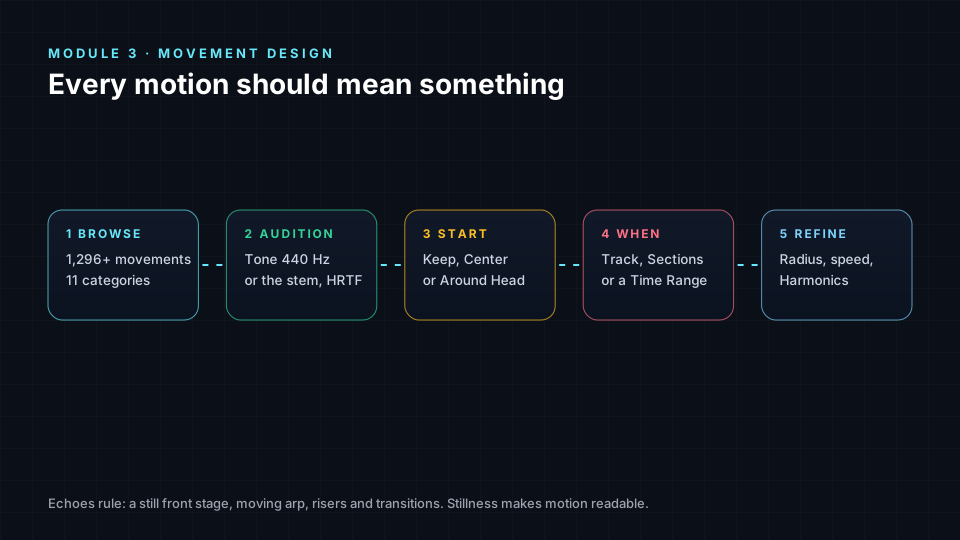
- The Movement Library holds more than 1,296 movements in eleven categories, auditioned with a 440 Hz tone or the stem in HRTF 3D.
- Apply Movement sets a starting position (Keep Position, Center First, Around Head) and a scope (Entire Track, Specific Sections, Custom Time Range).
- Harmonic Movements tie motion to pitch, energy and sections, while Spatial FX and A/B/C Compare help you test the result.
Movement is the most exciting tool in immersive audio and the easiest to overuse. A mix where everything spins is not immersive; it is tiring. The listener cannot tell which motion matters, so none of them do. The opposite is just as wrong: a mix where nothing moves wastes the medium.
Echoes, the reference mix you studied in the classroom tour, shows the balance. Bass, lead, snares and impacts form a still front stage. Only the arp, the risers and the transitions move. Because most of the scene is stable, every motion reads as an event. This lesson teaches you to design motion the same way.
What you will learn
- Three questions to ask before you make a sound move.
- How the Movement Library is organised and how to audition a movement.
- The three starting positions and three time scopes for applying a movement.
- How to fine-tune orbit radius and speed, and when to use Set Position instead.
- How Harmonic Movements tie motion to pitch, energy and sections.
- How the Spatial FX switches and the arrangement editor support your plan.
Three questions before anything moves
- What is the musical reason? A riser builds tension, so rising motion supports it. A transition moves the song from one place to another, so front-to-back motion supports it. If you cannot name a reason, keep the sound still.
- What is staying still? Motion is only readable against a stable reference. Decide your anchors first, usually bass, lead and the main drums.
- Where will the listener look? Sounds moving behind you pull attention away from the front stage. Use rear motion for short moments, not whole verses.
The Movement Library
Open a stem card and press Movement, or use Change movement in the Sphere inspector. The Movement Library offers "1,296+ spatial movements" in eleven categories: Orbital, Linear, Dynamic, 3D Complex, Static, Immersive, Ambient, Cinematic, Intimate, Spatial FX and Your Custom. The search box accepts a name, an effect or a use case, for example "slow overhead" or "tension".
Audition before you commit
Every movement can be auditioned with Tone (a 440 Hz test tone) or Stem (the actual stem), rendered in 3D with HRTF so you hear it as it will sound. Press Space to audition and Enter to select. The inspector explains each movement with a star rating, a 3D Preview, the Psychoacoustic Effect it relies on, its Purpose, what it is Best For and its Spatial Impact.
Audition with Tone first to judge the path itself, without the music distracting you. Then audition with Stem to judge whether it suits the sound. A wide orbit that sounds great on a tone can smear a busy synth.
Press Use this movement to choose it. If you are signed in, it is also saved to your library.
Apply Movement: where it starts and when it runs
The Apply Movement dialog asks two questions.
**Starting Position:**
| Option | What it does |
|---|---|
| Keep Position | Starts from the stem's current spot. The path may be constrained to stay in the room |
| Center First | Re-centres the stem so the full movement is visible |
| Around Head | Orbits around the listener |
Apply Movement To: Entire Track, Specific Sections or Custom Time Range. Section and range scopes are how you reserve motion for the moments that need it, such as a build or a breakdown.
If an orbit would hit the edge of the space, Niner may ask whether you want to centre the stem first. You can answer yes, center, around or no.
Fine-tuning and Set Position
Once a stem moves, its card shows movement chips with an orbit Radius slider and an orbit speed slider. Small changes matter: a slower orbit sounds calmer and more expensive; a faster one sounds urgent.
When you want a fixed spot rather than motion, use Set Position. It offers a Scene view (3D, Top or Front), a Panner pad and X (left/right), Y (down/up) and Z (front/rear) values from -3 to 3. Arrow keys move 0.1, or 0.5 with Shift. Presets give Center, Front L, Front R, Rear L, Rear R and Above. Like movements, positions can be applied to the Entire Track, Musical Sections or a Time Range, then confirmed with Apply Position. A position that changes only in the chorus is often more powerful than any orbit.
Sections: the map of the song
The Arrangement timeline shows the song's sections. Click a section to jump there; a badge shows the current section. Edit Sections opens "Edit Musical Sections", a table with Type, Start Time, End Time, Duration and Energy. You can Add Section, Reset Changes and Save Changes. Accurate sections make section-based movement precise, so check them before you automate.
Harmonic Movements
Harmonics in the Tools group opens "Harmonic Movements — Control stem spatial motion". Instead of a fixed path, motion follows the music. Melodic instruments move vertically with pitch, so a rising melody literally rises.
- Quick Presets to start fast.
- Sliders: Orbit Radius, Activity, Speed, Height and Smoothness.
- Toggles: Pitch Tracking, Energy Reactive, Breathing Effect and Section Aware.
- Apply to: Melodic Instruments, Backing Vocals, Bass and Synthesizers.
Keep Bass out of harmonic motion unless you have a strong reason, for the same reason Echoes keeps its Reese Bass still.
Spatial FX switches
The Spatial FX group adds motion-aware behaviours across the mix:
- FX Energy: dramatic motion for risers.
- Accent Throws: tempo-synced spatial arcs on accents.
- Ghost Orbits: shows movement paths in 3D, a great teaching aid.
- Flux Mode: controlled random arrangements for exploration.
Use Flux Mode to discover ideas, then rebuild the best one deliberately.
A/B/C Compare
A/B/C Compare in the Tools group lets you switch between A - Stems (Spatial), B - Master (Reference) and C - Mixdown (Generated), with Phase Invert, Correlation and Offset. After a movement pass, use it to confirm that your motion still serves the original song.
Lab steps
- Pick one Echoes stem that is currently still, such as Pluck 3. Write its musical reason to move, or decide it should stay still.
- Search the library for "rise". Audition three results with Tone, then with Stem.
- Apply your favourite with Center First to Specific Sections only.
- Reduce the radius by half and listen again.
- Turn on Harmonics for Synthesizers with Pitch Tracking on. Does the Synth Lead stay readable?
- Turn on Ghost Orbits and take a screenshot of your scene during the build.
Check yourself
- What should you decide before choosing any movement?
- Why audition with Tone before Stem?
- What is the difference between Keep Position and Center First?
- What does Pitch Tracking do in Harmonic Movements?
- Which A/B/C option plays the generated mixdown?
Answers
- The musical reason, and which sounds stay still as anchors.
- Tone shows the path clearly; Stem shows whether it suits the sound.
- Keep Position starts from the current spot and may be constrained; Center First re-centres so the full movement is visible.
- It makes melodic instruments move vertically with pitch.
- C - Mixdown (Generated).
Assignment
Write a one-page "motion score" for Echoes: a table of sections with which stems move, which path, which scope and the musical reason. Apply it, record a 30-second screen capture with Ghost Orbits on, and note one change you made after listening.
Frequently asked questions
How many movements are in the Movement Library?
The library offers more than 1,296 spatial movements in eleven categories, from Orbital and Linear to Cinematic, Intimate, Spatial FX and Your Custom.
Should every stem move in an immersive mix?
No, motion is only readable against stable anchors, so most professional immersive mixes keep bass, lead and main drums still and reserve movement for specific moments.
Can I make a sound move only in the chorus?
Yes, Apply Movement and Set Position can both target Specific Sections or a Custom Time Range instead of the entire track.
What are Harmonic Movements?
Harmonic Movements make stems move with the music, for example raising melodic instruments as their pitch rises and reacting to energy and sections.
Next step
Library movements are a great start, but your own gestures can be even more expressive. Continue with Classroom Lab 2: Record Spatial Movement With Your Hands and Body, or return to the Spatial9 Academy course home.
The full lesson is free with a Spatial9 account.