Learning With Niner: How an AI Mixing Tutor Teaches Your Ears
Spatial9 Team · · 6 min read
Lesson 16 of 24 in Spatial9 Academy, module 3: Inside the Immersive Classroom. Practice in the demo: Music Transformation.
Key takeaways
- Niner answers in four cards: What I heard, Analysis with a named concept, Watch out for, and Try next with a listening exercise.
- Proposed changes wait in a Ready to apply card, and Undo, Redo and A/B compare (Before Niner versus With changes) keep you in control.
- You can type or talk; Niner speaks with a bright young voice, and Voice on reads typed replies aloud.
- Niner can move stems, add any of the 1,459 effects, set ducking, harmonics, head tracking, spatial mode and more.
A tutor is not a shortcut. A good tutor explains why, lets you try, and asks you questions back. That is how Niner works in the classroom. It can change your mix, but its main job is to make your ears and your reasoning stronger.
You have already met Niner in this module: it placed every Echoes stem in the classroom tour and designed effects in Classroom Lab 3. This lesson is about the conversation itself.
What you will learn
- How to start a session from the Ask Niner bar.
- How to talk or type, and how Niner's voice works.
- How to read the four answer cards.
- How proposals, Undo, Redo and the A/B compare protect your work.
- What the Standard, Evolving and Experimental modes change.
- What Niner can control in the classroom, and how to ask for it.
- A study routine that turns each answer into practice.
Starting a session
The Ask Niner bar stays at the top of the classroom. It reads "Ask Niner, your mixing tutor" and suggests two styles of request: asking why something sounds the way it does, or giving an instruction such as "move the lead above me". Three chips start common conversations: Explain this mix, Make it wider and Quiz me. Press Start session to open the chat. While Niner is listening, the button reads Go to chat.
The chat header shows Niner with a Tutor badge and the line "Your spatial mixing tutor". Starter prompts include "Walk me through this mix", "Why is the vocal placed there?", "Make the chorus feel wider" and "Quiz me on what I hear".
Type or Talk
Choose Type or Talk at the bottom of the chat. In Talk mode you speak and Niner answers out loud. Niner speaks with a bright, young voice, friendly and easy to follow. In Type mode, the Voice on / Voice off switch decides whether typed replies are also read aloud. Many learners remember an explanation better when they read and hear it at the same time, so try Voice on while you study.
Reading Niner's answers
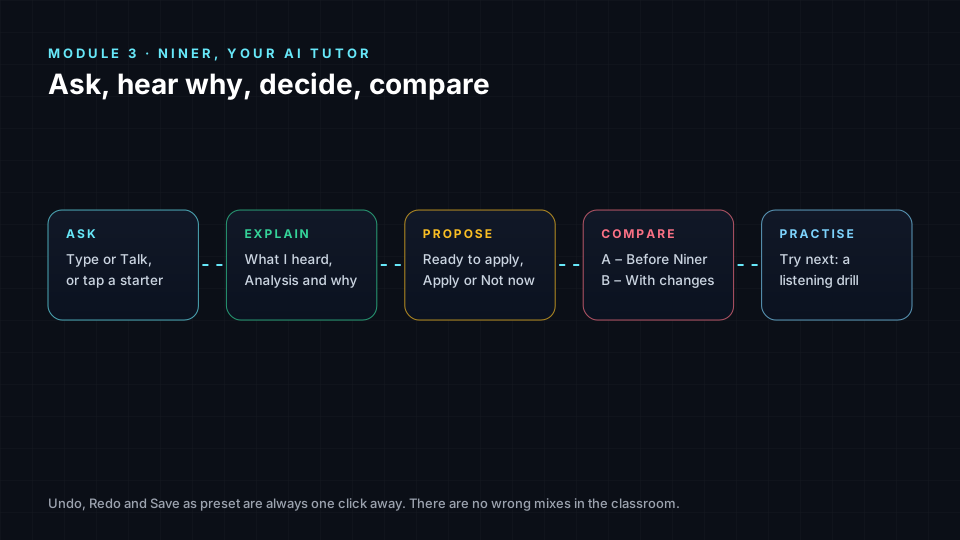
Niner's replies are organised into cards:
| Card | What it gives you |
|---|---|
| What I heard | A description of the current state of the mix |
| Analysis | Why it sounds that way, with a named concept |
| Watch out for | A risk or side effect to listen for |
| Try next | A small action or listening exercise |
The named concept is the key part. Niner ties explanations to ideas you have met in the Academy: localisation, HRTF, height channels, masking, envelopment, mid/side, distance cues, and motion and attention. When you see a concept you do not know, ask "explain HRTF like I am new". That turns one question into a mini-lesson.
When your request is vague, such as "make it better", Niner offers two contrasting options instead of guessing. Choosing between two clear options teaches you more than accepting one. Most answers end with a listening exercise. And Niner's classroom motto is worth repeating: "There are no wrong mixes in the classroom."
Proposals, Undo and A/B
When Niner suggests a change, it shows a proposal card: "Ready to apply · N stems", with Apply changes and Not now. Nothing changes until you say so.
After you apply, the toolbar gives you:
- Undo and Redo.
- A/B compare, switching between A – Before Niner and B – With changes.
- Save as preset, to keep a look you like.
- Close Niner.
Always A/B a proposal for at least one full section. If B is not clearly better, undo it. That decision is the real skill you are building.
Session modes
- Standard: a balanced tutor, the default.
- Evolving: learns your preferences over time. You need to be signed in. When you correct Niner, for example "never move the bass", it replies "Rule saved." and remembers.
- Experimental: bolder, more surprising suggestions. Great for exploration, but A/B everything.
What Niner can do for you
Niner can operate almost every control in the classroom. You can ask it to:
- Move stems in X, Y and Z, set a movement type and change orbit radius or speed.
- Add reverb, EQ, delay or compression, and add effects from the 1,459-effect library to the whole mix or a stem, for example "add a 7.1.4 cathedral reverb". It can also clear effects.
- Change stem volume, mute and solo, and the master volume.
- Play, pause, stop and seek, and change BPM or genre.
- Switch spatial mode between Ambisonics and 7.1.4, toggle head tracking and A/B mode.
- Set ducking from 0 to 12, check masking and change performance mode.
- Apply harmonic movement presets: subtle, balanced, dramatic, cinematic or minimal.
- Set up hearing compensation, toggle Flux Mode, rename the project and open export.
On songs with vocals, Niner can also transcribe the vocal ("Transcribe the vocal") and set up word triggers that fire an effect on a chosen word, shown as "Word effect ready" with Apply word effect. If an orbit would hit the edge of the space, Niner asks whether to centre the stem first; you can answer yes, center, around or no.
A study routine with Niner
- Predict: before asking, write what you think the answer is.
- Ask why: request an explanation with a concept.
- Listen: do the "Try next" exercise exactly.
- Decide: apply or decline, then A/B.
- Teach back: explain the concept to Niner in your own words and ask it to correct you.
- Quiz: end with "Quiz me on what I hear".
Check yourself
- Which four cards organise Niner's answers?
- What does Niner do when your request is vague?
- What do A and B mean in Niner's A/B compare?
- Which session mode remembers your corrections?
- Name three things Niner can change besides stem positions.
Answers
- What I heard, Analysis, Watch out for and Try next.
- It offers two contrasting options.
- A is before Niner's changes; B is with changes.
- Evolving, when you are signed in.
- For example: effects, volume, ducking, harmonic presets, head tracking, spatial mode or hearing compensation.
Assignment
Run a 20-minute tutoring session using the routine above. Ask at least three "why" questions about Echoes, apply one proposal and decline one after an A/B. Submit the transcript with a paragraph explaining one concept you learned in your own words.
Frequently asked questions
What is Niner?
Niner is the AI mixing tutor in the Spatial9 Immersive Classroom, which explains why a mix sounds the way it does, proposes changes you can accept or decline, and quizzes you on what you hear.
Can I talk to Niner instead of typing?
Yes, switch to Talk mode to speak and hear spoken answers, or stay in Type mode and turn Voice on to have typed replies read aloud.
Will Niner change my mix without asking?
No, proposed changes appear in a Ready to apply card and only take effect when you press Apply changes, and you can always undo or A/B them.
Can Niner add effects to my mix?
Yes, ask for an effect by name or description, such as a 7.1.4 cathedral reverb on the whole mix or a NASA black hole texture on the pad.
Next step
Your mix is placed, balanced, moving, processed and reviewed. Time to deliver it. Continue with Export, Share and Deliver an Immersive Mix, or return to the Spatial9 Academy course home.
The full lesson is free with a Spatial9 account.