
Classroom Lab 3: Design Audio Effects With Words and Your Voice
Spatial9 Team · · 7 min read
Lab 15 of 24 in Spatial9 Academy, module 3: Inside the Immersive Classroom. Practice in the demo: Music Transformation.
Key takeaways
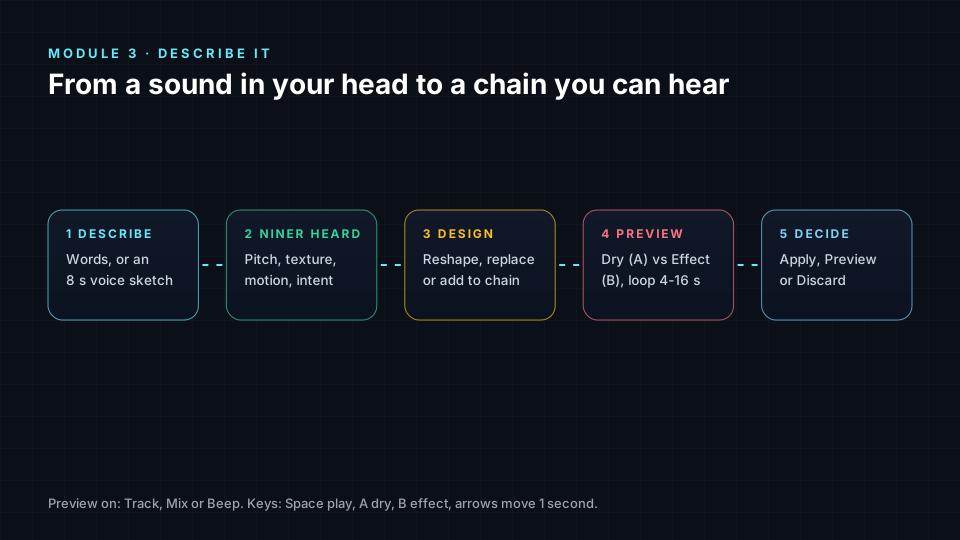
- Describe it turns plain-language descriptions or 8-second voice sketches into a chain of real processors.
- Niner shows what it heard from your recording and says whether the design reshapes, replaces or adds to your current chain.
- The Preview player compares Dry (A) and Effect (B) on the stem, the whole mix or a neutral beep, with 4 to 16 second loops.
- Refine with one-change follow-ups such as "less wet, keep the attack", and nothing changes until you apply it.
Every producer has had this moment: you can hear the sound in your head, but you do not know which plugin, which setting or even which word will get you there. You end up scrolling presets for an hour.
The classroom gives you a different path. At the top of the Effects Rack library sits Describe it, where you can explain the effect you want in plain language, or simply make the sound with your mouth. Niner turns that into a real chain of processors that you can preview, tweak and keep.
In The Effects Rack you learned the 28 processors and 16 collections. This lab builds on that knowledge, because the better you understand what processors do, the better you can judge what Niner designs.
What you will learn
- How to write a description that leads to a useful effect.
- How to record a voice sketch and what Niner listens for.
- How to read a design: reshape, replace or add, and the processor order.
- How to judge an effect with the Preview player on a stem, the mix or a beep.
- How to refine an effect with follow-up requests.
- How sound imitation connects to research on vocal sketching.
Describe it, in words
Open the Effects Rack and look at the top of the library. The box reads "Describe any sound you can imagine". Four example chips show the range:
- "A voice from inside a frozen cathedral on Europa"
- "Make it sound like a broken cassette left in the sun"
- "Wide shimmer that slowly rises into the ceiling speakers"
- "Darker and further away, with less wobble"
Notice how different they are. The first is a scene. The second is an object with a history. The third is a technical, spatial instruction. The fourth is a correction to what is already there. All of them work.
Writing a good description
| Include | Example |
|---|---|
| A place or material | "glass", "underwater", "inside a tin can" |
| A spatial direction | "rises into the ceiling", "behind me", "wide" |
| A motion or time feel | "slowly", "stutters on the beat", "frozen" |
| A tone word | "darker", "brighter", "dusty", "metallic" |
| A comparison to now | "less wobble", "more distant", "keep the attack" |
Press Design this effect, or Ctrl/Cmd+Enter.
Describe it, with your voice
Next to the text box is a microphone: "Say it, or make the sound with your voice". You can record up to eight seconds. You can speak a description, or you can imitate the sound itself: a whoosh, a robotic buzz, a stuttering "t-t-t-t", a slow rising hum.
After recording you can play back your sketch to check it. Niner analyses it and shows what it understood, starting with "Niner heard: …". This is your chance to catch a misunderstanding before anything changes. Words are optional after a recording, but adding a few, such as "but darker", often sharpens the result.
Imitating sounds with your voice is a natural way to communicate audio ideas. Sound designers do it in meetings all the time, and research on vocal sketching has shown that people can describe sounds by imitation as effectively as with words, sometimes better. Pitch contour, roughness, rhythm and how a sound starts and ends all survive in an imitation, even when we have no vocabulary for them.
Reading the design
The result card tells you three things.
- What it does to your chain: "Reshapes the current chain", "Replaces the current chain" or "Adds to the current chain". Corrections like "less wobble" usually reshape. New ideas usually replace or add.
- The processors in order, written like "A > B > C". Read it as a signal path. "Filter > Granular Cloud > 7.1.4 Reverb" means the sound is darkened, then scattered into grains, then placed in a big immersive room.
- Three choices: Apply, Preview or Discard.
Never apply blind. Use Preview first.
Judging with the Preview player
The Preview player is a small card you can drag anywhere on screen. It gives you three sources under Preview on:
- Track: the selected stem, to judge it in context.
- Mix: the whole song, to judge how the effect sits.
- Beep: a neutral test sound that shows what the effect does on its own.
Pick a loop of 4s, 8s, 16s or Full. Click or drag the waveform to scrub, and drag the loop edges to frame the phrase you care about. Playback starts at the loudest part or your current playhead, and the main player pauses so you do not hear two things at once.
The heart of the player is the A/B: Dry (A) and Effect (B) crossfade between the original and the processed sound. Use the keys: Space to play or pause, A for dry, B for effect, left and right arrows to move one second. Switch quickly and often. Your ears adapt within seconds, so fast switching gives a fairer comparison. When you like it, press Add to chain.
Refining
Treat the first result as a draft. Follow-ups are where Describe it shines:
- "Less wet, keep the attack."
- "Make the shimmer rise slower."
- "Darker and further away, with less wobble."
- "Only on the high end."
Each follow-up should change one thing. If you ask for five changes at once, you will not know which one helped.
You can also ask Niner in the chat, for example "add a 7.1.4 cathedral reverb" or "nasa black hole on the pad". Niner can add effects from the full library to the whole mix or to a single stem, and clear them again.
Lab steps
- Select Pad. Type "Wide shimmer that slowly rises into the ceiling speakers" and design it.
- Read the processor order. Predict what you will hear before pressing Preview.
- Preview on Beep, then Track, then Mix with an 8-second loop. Write one sentence per source.
- Discard it. Select Stabs and record an 8-second voice sketch of a stuttering robot.
- Read "Niner heard". Was it right? If not, add a few words and design again.
- Refine twice with one-change follow-ups. Apply the best version.
- A/B the whole song with the main A · Spatial and B · Stereo switch. Does the effect serve the song?
Check yourself
- What is the maximum length of a voice sketch?
- What does "Niner heard" tell you?
- What are the three ways a design can change your chain?
- Why preview on Beep?
- How many changes should a follow-up request make?
Answers
- Eight seconds.
- How Niner understood your recording, before any change is made.
- Reshape, replace or add to the current chain.
- To hear what the effect does on its own, without the music.
- One.
Assignment
Create a "sound sketchbook" of five effects for Echoes: two from text, two from voice sketches and one combining both. For each, record your description or sketch, what Niner heard, the processor chain, the Preview source you trusted most and whether you applied it.
Frequently asked questions
Can I design an audio effect just by describing it?
Yes, type a description such as "a broken cassette left in the sun" into Describe it and Niner designs a chain of processors you can preview, apply or discard.
Can I make the sound with my voice instead of describing it?
Yes, record up to eight seconds of yourself imitating the sound or saying what you want, and Niner shows what it heard before designing the effect.
What is the difference between Dry and Effect in the preview?
Dry is the original sound and Effect is the processed version, and switching between them with the A and B keys is the fastest way to judge a change.
Will the effect change my mix before I approve it?
No, a design only changes your chain when you press Apply or Add to chain, so you can preview and discard freely.
Next step
You have now worked with Niner as a sound designer. Learn how to use it as a teacher in Learning With Niner: How an AI Mixing Tutor Teaches Your Ears, or return to the Spatial9 Academy course home.
The full lesson is free with a Spatial9 account.